See what's new in Chrome
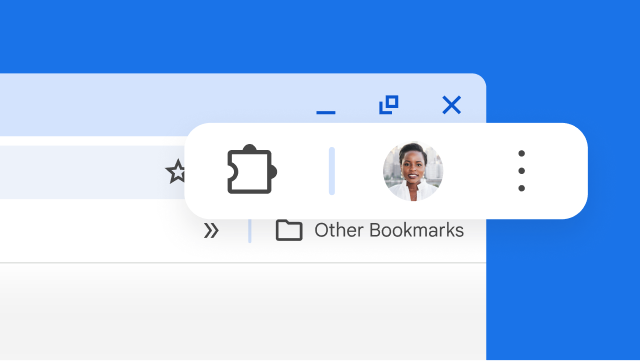
Your Chrome has been updated
Coming soon
Get AI help right in your tab
With Gemini in Chrome, you have a personal AI assistant right in your tab. It helps you easily understand content on the web and get tedious tasks done using the context of your open tabs and browsing history.
To open Gemini in Chrome, just click the Gemini in Chrome icon at the top of your browser. Or, you can open it with a keyboard shortcut:
Mac: Ctrl + G
Windows: Alt + G
Coming soon
Go Live with Gemini in Chrome
You can talk naturally with Gemini to brainstorm ideas, discuss complex topics, and more.
To go Live with Gemini, open Gemini in Chrome and click Go Live .
To interact with Gemini Live, just start talking. You can even interrupt to add details or change the topic.
Coming soon
View two pages in one tab
Split view puts two pages side-by-side in the same tab. This makes it easier to compare options, watch a video while taking notes, and more.
To open a split view, drag another tab to the left or right edge of your browser window. Or, right-click a link and select Open Link in Split View.
Get your tab groups on the go
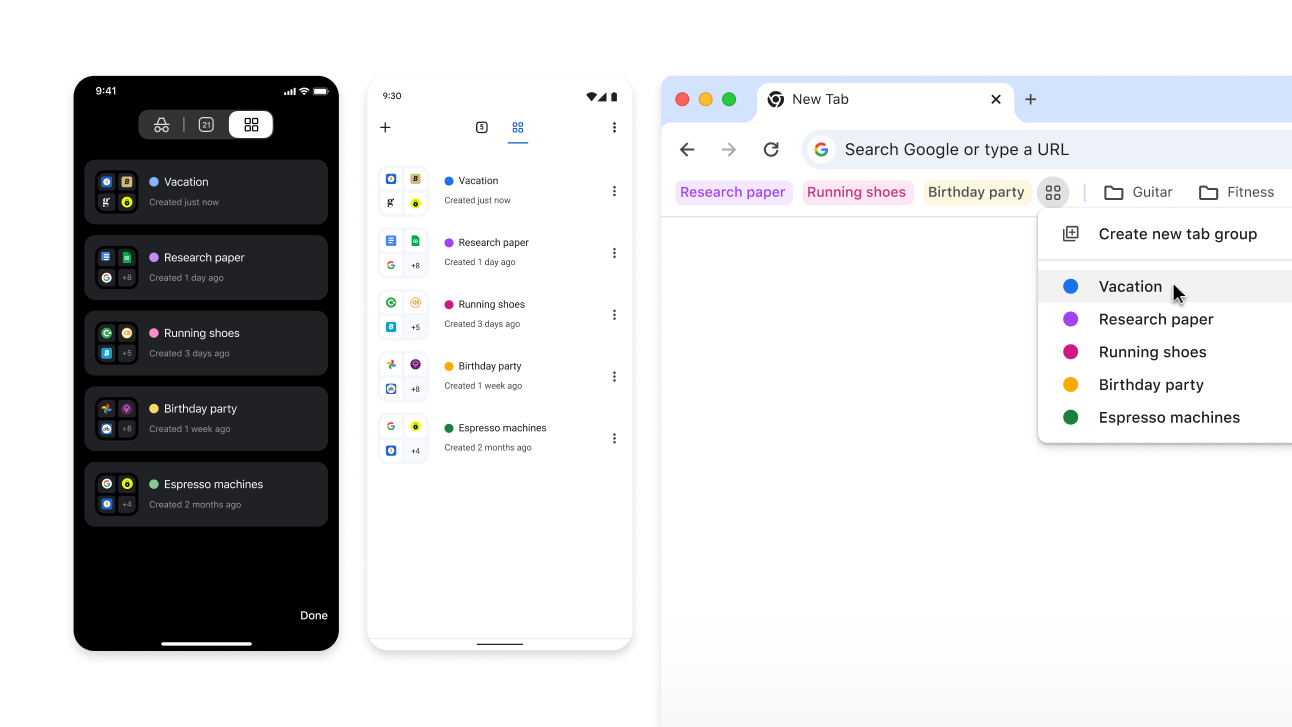
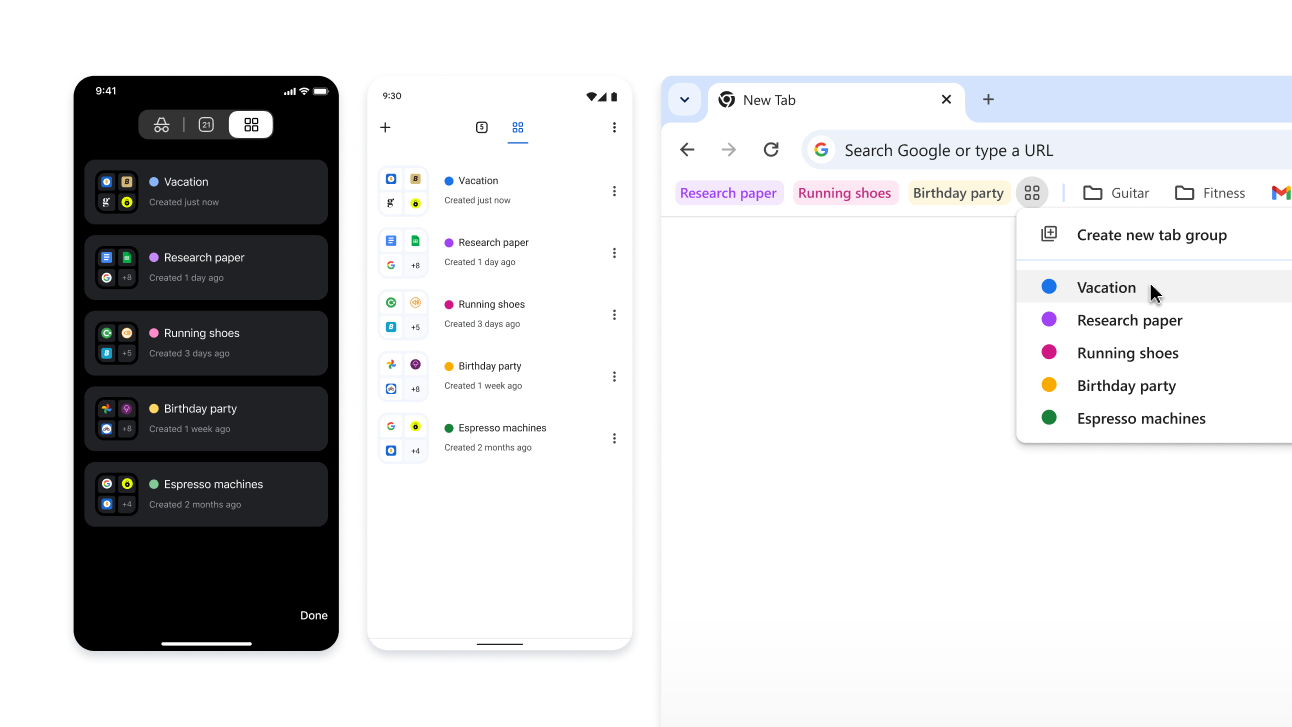
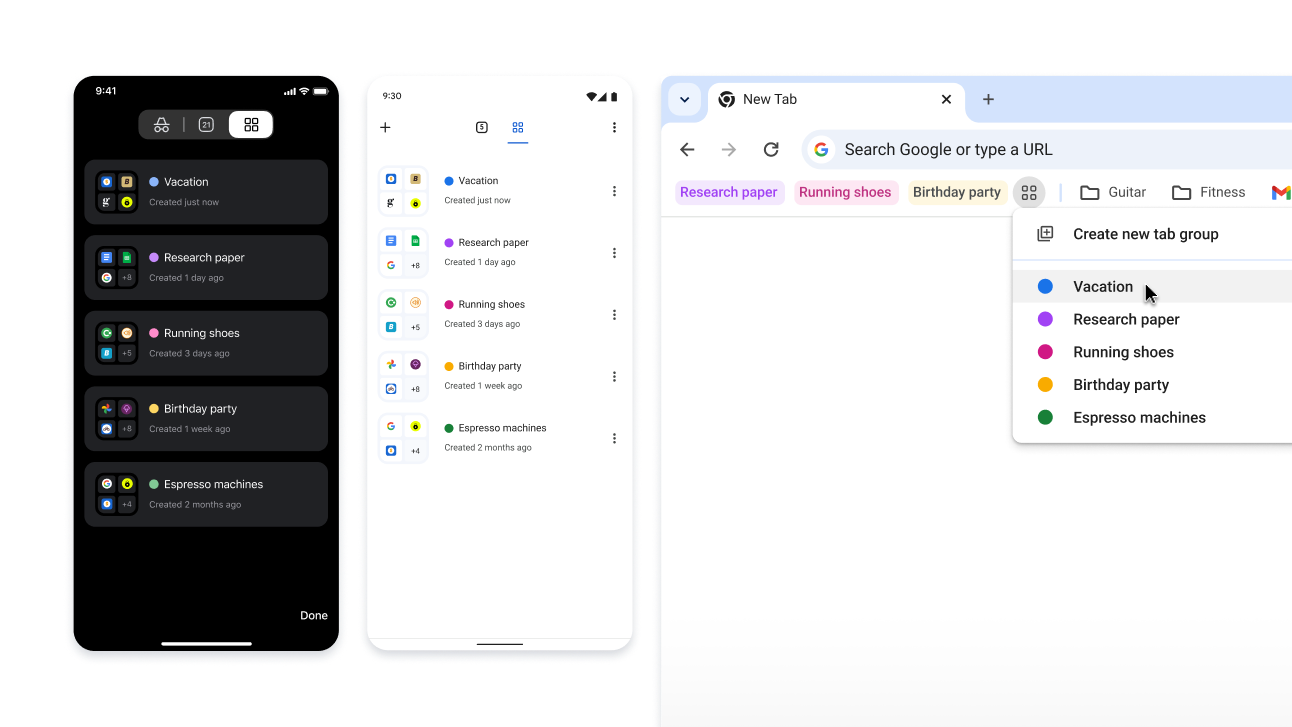
When you create a tab group, it’s automatically saved to your Google Account – so you can open those tabs and keep going on any signed-in device.
To start seeing your tab groups across devices:
- Sign in and create a tab group. The tab group will automatically save to your account.
- To open your group on a different device:
Mobile: Go to your open tabs and click the tab group section .
Desktop: Click the tab group icon in your bookmarks bar (if open) or the Chrome menu.